Plandroid - Graphical Air Conditioning Design and Quoting Software
Plandroid Help Documentation
Adding Images
A custom image is not an actual part and will not appear in your take-off list, but it does allow you to easily add your own graphics such as extra part images or logos (for example) to your design.
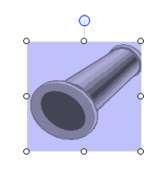 |
You can easily add your own custom image in the Design Page by using the Design -> Draw -> Add Image tool. Simply select the tool and click where you want to place your image on the design canvas, and you can browse to the image file to add. You can also drag the tool to set a box size that the image will fit within. Alternatively, you can simply drag and drop an image directly into the canvas without using any tool. Once you have placed your image, you can reposition it, rotate it, or resize it with its control handles. If you know the physical size it should appear in the canvas, you can also set that directly with the context menu item Set Image Size. See the Design page for more detailed information on manipulating images.
The program naturally supports most common image formats, as well as vector images in the Enhanced Metafile (.emf) format. If you copy and paste from a program such as Word or Excel, you can choose to insert your data as plain text or as a vector image file.
Note that dropping an image file into one of the Design tool tabs (such as the Design -> Plan tool tab) instead of the design canvas will tell the program to open that image as the floor plan image, and not a custom image. However, an image can be converted to a floor plan image with the context menu item Convert to Floor Plan Image. Note that if you alter the aspect ratio of the image (by stretching it in one direction only) before you use this option, it will first be reset to its original proportions.
Editing Catalogs
To add an actual new part to a catalog, you'll need to use the in-built Catalog Editor. This will let you add a new component to an existing catalog, or create an entirely new catalog. You can then add your new part to the design canvas and it will be priced in the Costing page.
Go back to How do I?