Plandroid - Graphical Air Conditioning Design and Quoting Software
Plandroid Help Documentation
Plandroid lets you change many properties of a part by storing your edits in a Price Edits File, which will overwrite the fixed values stored in the catalog. Part properties such as prices, labels, and (for some parts) draw styles and colours can be edited in this way. Information in a catalog is intended to be the same for all users of that catalog, while changes that are stored in your local Price Edits File are customised for you. Plandroid lets you edit part prices individually, or to customise all of your prices easily at once.
You Can Directly Edit an Individual Part's Price
To edit an individual part's price, you can edit it in either the Design page or the Costing page. In the Design page you can right click on the part in the catalog list view to open the context menu for that part. Choose the option Edit part price to directly edit the part's price. You can also edit the part's label, and if it is a drawn part such as ducting, you can edit its drawn colour.
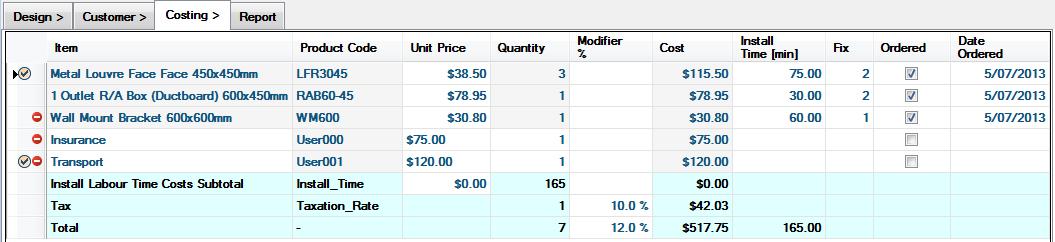
In the Costing page, you can edit any field with a white background, including the Unit Price, Price Modifier, Install Cost, or Install Time fields. Once you edit any of these fields, the program will remember the new value and use that whenever you add that part again.
 |
Note that while it is possible to open a save file containing parts that are not in your current catalog, you cannot reprice such a part.
Also, be aware that repricing affects all parts with that product code, which includes future versions of a catalog, and also saved files that you reopen - if they contain parts that have been repriced, then the prices and totals will change from when the file was last saved.
You Can Easily Customise All Your Prices at Once
You can easily create your own custom price or discount scheme for an entire catalog in Plandroid by following these steps:
- Export your prices from a catalog: Go to the menu item Tools -> Select Catalogs, right-click on the catalog you are using and select the context menu item Extract Price Edits File.
- Edit your prices in Microsoft Excel (for example): Open the exported .csv file in Excel (or other program), make any changes that you need to, and then save the file.
- Import your new prices into Plandroid: Use the menu item Import -> Price Edits File, and select the new Price Edits File to use.
You are now ready to use Plandroid with your own customised pricing!
An Options setting determines if you are using your own personal catalog edits file (located in your personal application data directory), or a shared catalog edits file (located in your DelftRed\Plandroid\Catalog ProgramData directory). The default price definitions file is CatalogEdits.xml, but you can select from any pricing file that you have created or imported.
These steps are covered in more detail in the following sections.
Exporting CSV Price Edits From a Catalog
You can export a file containing all the parts and their prices from any given catalog from the Tools -> Select Catalogs dialog. Right-click on any catalog and select the context menu item Extract Price Edits File. This will allow you to save the list of parts and prices in comma-separated value (CSV) format. You can then modify the prices and price modifiers (discount levels) of all the parts in that catalog very easily, for example using a spreadsheet such as Microsoft Excel. The values exported include any edits from the currently selected edits file.
Once you have finished editing the price edit file, you can directly import it back into the program in CSV format.
Importing XML or CSV Price Edits
You can import new or modified price edit files by going to Tools -> Select Catalogs, then pressing the Set Price Edits button and then the Import Prices button. You can import price edit files in native XML format, or you can import a file in CSV format.
A file in CSV format will be translated by the program into a native XML format file when you import it. A CSV file must have a single header row specifying which columns are provided, followed by any number of data rows. There must be a Part (or Product code) column, and at least one of the following optional columns: Price, Discount, Install Time, and Install Cost. The columns can be in any order. Other columns may also be present, but are ignored.
The input format is quite flexible, but the following is an example of a simple CSV file that can be imported:
Part, Price
WM400, 20.80
CCF615, 21.00
CCF620, 25.65
The following is a slightly more complex example that could be imported:
Part, Size, Price, Discount, Install Time, Install Cost
WM400, 400x400mm, 20.80, 0.00, 10, 5
CCF615, ø150mmx6m, 21.00, -0.20, 15, 10
CCF620, ø200mmx6m, 25.65, -0.25, 15, 10
In this example, the Size column is only provided for reference when editing the prices, and is ignored by the program when it is imported. The Price, Discount, Install Time, and Install Cost columns could also have been left out if any of them were not used.
Discounts can also be specified as percentages (e.g. 50%), and will be automatically
translated into negative price modifiers. If the item in the first column of a row begins with an asterisk (*), that row
will be skipped.
Saving or Moving an XML Price Edits File
The easiest way to access your catalog price edits file is to go to Tools -> Select Catalogs and then pressing the Set Price Edits button. In this dialog, right-click on the file you want to edit, and choose the Save Edits File As option to save the file in your own working directory. You can save a pricing scheme you have created to share it with a colleague, for example, or you can modify it as you wish, and then use the Import Prices button to re-import it back into the program.
Advanced Part Editing
You can edit an XML catalog edits file manually to customise other aspects of your catalog's behaviour. For example, you can set your own Add Parts definitions in this file so that you add exactly the parts you normally use with a part when you add that particular part to your design. See How Do I Customise My Catalog? and the Catalog File Structure documentation for further details.
You Can Have Many Different Price Definitions
Plandroid supports multiple price definitions, which is useful if you have different discount structures for different parts of your business. You can import a new price definition file using the menu item Import -> Price Edits File. You can switch between different price definitions from the menu item Tools -> Select Catalogs and then pressing the Set Price Edits button.
Although the program lets you select from multiple price edits files, you can only ever select one at a time to use. To apply more than one price edits file at a time, you will need to merge them into a single price edits file and select that file.
Merging Price Edits Files
From within the Set Price Edits dialog you can also use the context menu option Merge Edits With to combine other edits files with the selected file. In this way you can customise the pricing of multiple catalogs and use them all at the same time.
You Can Copy Your Prices Onto Other Machines
If you have your own pricing scheme set up on your computer, and you want to copy those definitions to other computers in your organisation running Plandroid, there are a number of ways to accomplish that.
- If you want to clone all of your program settings, including your price definitions, you can use the menu item Tools -> Program Settings -> Export and Import.
- If you want to copy only your price definitions, you can go to the menu item Tools -> Options -> Costing -> Catalog edits -> Set price edits. Bring up the context menu on the price edits file you want to copy by right clicking on it, and select Save Edits File As. Save the file, copy it to your other computers, and use the Import Prices button in that same dialog to import the price edits file on those computers.
- If all your users are on a shared network and you want everyone to share the same data, including your price definitions, you can centralise your user data as described in the next section.
You Can Centralise Price Control for Multiple-Users
If you have multiple Plandroid users on a shared network, you can centralise the price controls under a single "master" user who can change the pricing, and force all other "client" users to use those prices. You can easily do that by following these two steps:
- Make sure that all your users are using the same Application data directory. This is the directory where the shared data is stored, such as the catalogs to use, and the pricing information. On each user's machine, go to the Plandroid menu item Tools -> Options -> General -> Application data and use the Set directory button to point to a directory that is accessible to all users where you will store the application data. A shared location would usually be on a network drive, for example.
- Staying within Options go to Costing -> Catalog edits and on every computer ensure the item Apply user-edits when loading catalogs is checked. On the client's computers uncheck the item Allow catalog values to be edited, while leaving it checked on the master computer. This will force all users to use your custom pricing, while only the master user is allowed to modify it.
Go back to How do I?