Plandroid - Graphical Air Conditioning Design and Quoting Software
Plandroid Help Documentation
To request a Plandroid licence from within the program, go to the menu item Help -> Request Licence (or from the licensing info dialog, Help -> Licensing Info-> Request Licence). Fill in the information on the type of licence that you require and some basic company details and send that information to us. You will need an internet connection to order a licence.
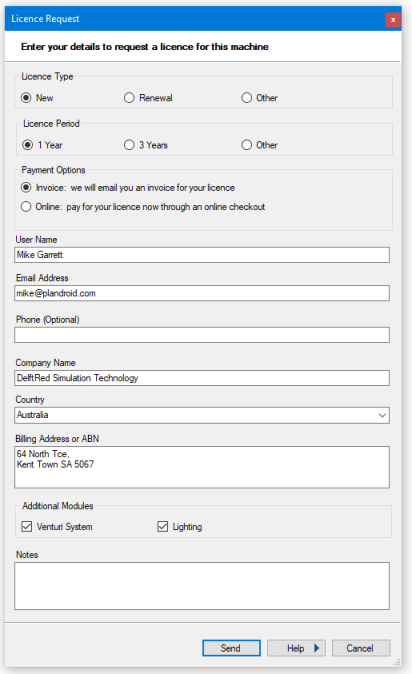 |
You can get more extensive help on ordering a licence directly with the Help button on this form, if you need it.
Installing Your Licence
Once we process your order and payment, we will create a digitally signed licence file which will be automatically installed on your machine when you restart Plandroid. Alternatively, you can manually check to see if your licence is ready by using the menu item Help -> Download Licence.
We may also send you a licence file as an attachment to an email, which you may choose to save and import into the program right away. You can do this using the menu item Import -> Licence, (or by opening the Help -> Licensing Info dialog box, and pressing the "Import Licence" button) and navigating to where you saved your licence. You can also simply drag and drop the licence file into the program window or the Licensing Information dialog box:
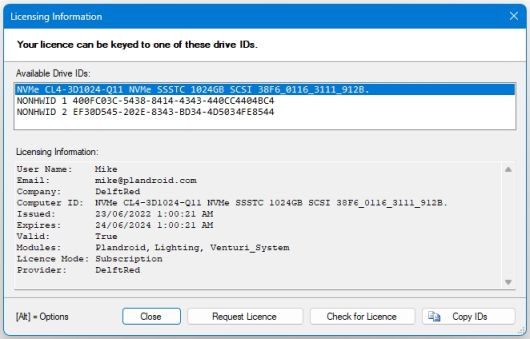
Your licence will now be activated.
Note that swapping or formatting your hard drives may change your drive ID, and therefore invalidate your licence. You should contact us at support@plandroid.com in this case.
A USB stick will also appear as a drive if it has a serial number, so you may even be able to make your licence portable. However, serial numbers do not appear on all USB devices, so this will only work if you are using a USB stick that has one.
Pricing
You can check the Plandroid licence prices on the Plandroid website: www.plandroid.com/pricing/.
Transferring a Licence
If you need to transfer your licence from one machine to another, please contact support at support@plandroid.com to make arrangements with us. If you are moving to a new machine, you can transfer your current program settings to your new machine easily with the menu item Tools -> Program Settings -> Export on the old machine, and Tools -> Program Settings -> Import on the new machine.
Locked Licences
Plandroid supports a licence mechanism whereby the program can be locked so that it can only use parts catalogs from one or more specified suppliers. Parts and units catalogs are locked separately. For example, a licence may restrict the parts catalogs you can use, but allow you to use any of the available units catalogs, or vice-versa. The Licensing Info dialog will report any locks on your licence.
All generic catalogs can still be read with a locked licence.
Lite Licences
Plandroid has different licensing modules, including a Lite (restricted) version. A lite licence does not allow access to the Costing or Report tabs, to the advanced image editing functions in the Design -> Plan tab, to the automatic ordering functions, or to any of the advanced design tools, such as the Automatic Design tool, the Check Design tool, the Show Zones Table tool, the Solve Airflows tool, or the Auto-size Ducts tool. A lite licence is also limited to a single floor plan level, cannot upload take-offs to the cloud, and is restricted to only using the generic catalogs.
Removing All Licences
If you are transferring your licence to another machine, for example, and you need to remove all licences from the current machine, you can go to the Help -> Licensing Info dialog, then hold down the [Alt] key, and the Import Licence button will change to a Remove Licences button. Press this button to remove all of your licences from the current machine.
Go back to How do I?