Plandroid - Graphical Air Conditioning Design and Quoting Software
Plandroid Help Documentation
You can control which database is used for storing and retrieving your customer data in Plandroid.
From the Customer page, select the Connect to Database toolbar button ( ). This lets you select a different local or remote database to use for your
customer details.
). This lets you select a different local or remote database to use for your
customer details.
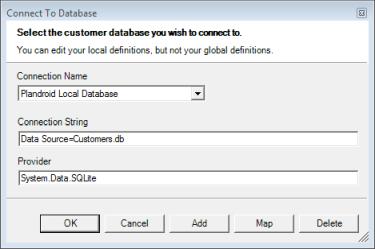 |
Plandroid uses a local SQLite database for storing your customer details by default. However, this dialog allows you to use your own database. You can select a connection by name, and specify the connection string to use plus the database provider type (the .NET components to use to handle the connections) for this connection.
You can access your local (Plandroid) connection definitions here as well as your global (user) definitions. However, you can only edit your local definitions. You can select a global connection, but as it may be used by other programs on your system, you may not edit its properties in this dialog.
To create a new connection, simply use the Add button to define its properties. You may need your IT administrator to provide the correct connection details for your external database.
The Map button allows you to map the customer detail fields to fields in an external database. This lets you specify the database table to use, and which fields will link to the customer details in the Customer page. All database fields must come from the same database table. If you are mapping to your own database, any blank database items in the mapping will result in those customer fields not being saved to or read from your database.
As SQL is not completely standardised, it is not guaranteed that the program will work with all database providers. It is also possible that the reported Providers may not be installed on your system, which could prevent the database from being accessed.
The Local Plandroid Database Structure
Your database should at least have fields corresponding to the Plandroid default database fields. The SQL command to construct the default database is shown below:
CREATE TABLE table1 (QuoteNo INTEGER PRIMARY KEY,
                     FirstName text,
                     LastName text,
                     Title text,
                     Address text,
                     City text,
                     State text,
                     Postcode text,
                     Phone text,
                     Status text,
                     Due text,
                     Email text,
                     SiteAddress text,
                     SiteCity text,
                     SiteState text,
                     SitePostcode text)
Note that Due must be text in a parsable date format, for example 2020-01-01 09:00 AM.
Go back to How do I?