Plandroid - Graphical Air Conditioning Design and Quoting Software
Plandroid Help Documentation
You may wish to reuse designs you have already made, essentially using them as design templates. Reusing common designs whenever you have a similar house plan can greatly increase your efficiency.
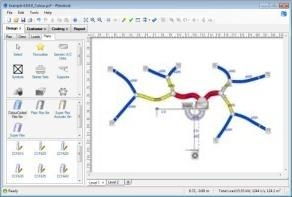 |
To reuse a design, simply load your house plan, scale it, and draw your load zones as normal. Then using the menu item Import -> Design you can select a previous Plandroid save file and import the parts from that design. (Only the catalog parts are added with this tool - any other plans, zones or walls etc. in the overlaid design are discarded). Then simply reposition the components to suit the new plan layout by dragging them into place. If you have connected the parts in your design using snap-to, everything will remain connected as you do the repositioning, and it will only take minutes to complete an entire custom design from start to finish.
Remember that you can also reposition your entire design relative to a floor plan in one action if you first use
Edit -> Select All and then do a normal drag. Select All will select all objects from all
tabs in your design, although to drag the entire design, you will need to click and drag an item that can normally be
selected in your current tab. To rotate your entire design, you can use the group rotation handle, or
the toolbar button Rotate Selection ( ).
See How do I use an edited plan image? for further details.
).
See How do I use an edited plan image? for further details.
Go back to How do I?