Plandroid - Graphical Air Conditioning Design and Quoting Software
Plandroid Help Documentation
You can integrate Plandroid with other software packages, either through the internet ("the cloud") or by launching the program with appropriate command-line parameters. Plandroid can communicate with SimPRO across the internet, or with Tektools or any number of 3rd party programs using the command-line.
Connecting via the Cloud (e.g. SimPRO, Climat)
The take-off list from your Plandroid design can be directly uploaded to your SimPRO account or (for Climat staff) to your Climat server.
If you are using SimPRO, you can upload your take-off list as either a SimPRO quote or job, and each part can be allocated to any SimPRO cost centre. You can also upload your current catalog selection into SimPRO, or conversely download your SimPRO costing scheme as a reprice file to use in Plandroid, so your part pricings are kept synchronised.
Naturally, you need an internet connection to perform these tasks.
Authenticating
Before you can connect to the cloud, you will need to have your own SimPRO account, and you'll need to know the URL (internet address) of your SimPRO server. You need to enter this information into the Cloud Connection options settings in Tools -> Options -> Costing -> Cloud Connection. (Including http:// or https:// is optional, but the program will always use https://).
Similarly, if you are using the Climat link, your organisation will provide you with the URL and security credentials you need to connect to your server.
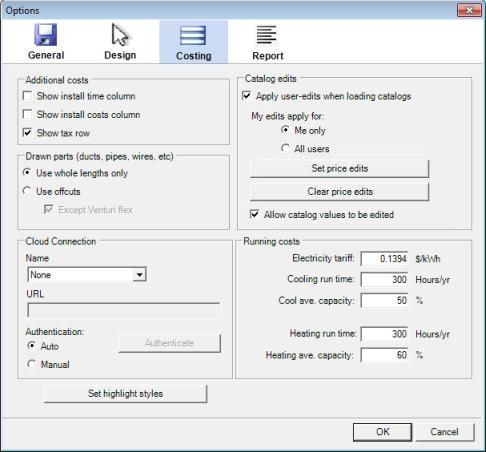 |
Once you have entered this information, the cloud connection tools will become active. You need to authenticate (log in to your account) periodically to keep the connection secure - normally every seven days. You can do that immediately with the Authenticate button, or the program will prompt you when required.
Synchronising Catalogs for SimPRO
Normally the first thing you will want to do is to synchronise your catalog data between Plandroid
and SimPRO. In the Design page -> Parts tab you need to open the context menu (right-click in the top catalog window),
and if you have entered your Cloud Connection settings you can choose the  Synch Catalogs item.
If your catalog data is current on SimPRO, you can download your SimPRO price data to a price edits file, so that the Plandroid prices match your SimPRO Base Price prices. (The program will create a new price edits file for SimPRO that you can switch to, while keeping your existing price edits file).
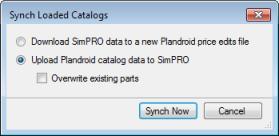 |
Conversely, if you want to upload your Plandroid catalog selection to your SimPRO account, you can also do that. Every part in your currently loaded catalog selection will be uploaded to your SimPRO account with this action. If any parts in SimPRO have the same product codes as parts in your current catalog selection, you have the option to overwrite those existing parts with the Plandroid catalog data.
Uploading Data
On the Costing page you can use the Upload to the Cloud toolbar button ( ) to send your take-off list directly to your SimPRO or Climat account. If you need
to re-authenticate first, the program will prompt you to do that.
) to send your take-off list directly to your SimPRO or Climat account. If you need
to re-authenticate first, the program will prompt you to do that.
Uploading SimPRO Data
For SimPRO, you can upload either a quote or a job, as either a service or a project. If you upload your list as a project, you can section it by plan level, design mode (refrig, evap, etc.), manufacturer, part fix order, or none to leave it unsectioned.
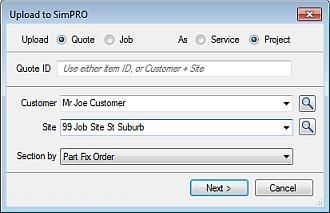 |
The program will copy any quote ID and/or customer and site details from the Customer page into the appropriate fields in this dialog. If you specify an existing quote or job ID directly, the program will upload your data as an edit to that record on your server. If instead of entering an ID, you supply the customer and site details, the program will use those to locate an existing record, or to create a new one if required. (If you have not entered any customer details, you will need to select an existing customer or site from the records on your server). If the program can locate an existing job or quote on your server, your data will be uploaded as an edit to that record, otherwise they will specify a new job or quote to upload your data to.
Note that you can search your customers or sites either for a string or directly by ID. To search by ID, you must prefix the ID number with a hash (#).
The next stage is to specify the SimPRO sections and cost centres to use. If you are uploading to a new job or quote, you just need to specify the cost centres you want, and the program will group your items by their cost centre into a new section for each group. If you are uploading to an existing job or quote, you also need to specify which section maps to your pre-defined sections on your server, and you can only select the cost centres that have already been defined for each pre-defined section.
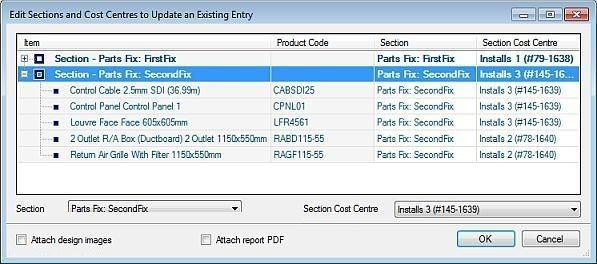 |
The parts will be shown grouped into the sections you specified earlier. To specify the sections and cost centres to use per section simply select that section and use the drop-down selector on the bottom of the dialog to apply your choice. To specify the cost centre to use per item, open the section (by clicking on the "+" icon) and select one or more individual items. Again, if you are editing an existing job or quote, you can only specify those cost centres that have been pre-defined for the section you have specified.
If you are showing the install times in the Costing page, Plandroid will also upload the install times. If you are not showing the install times, then no times will be uploaded. If you are instead showing the install costs, they will not be uploaded.
A part quantity can only be uploaded to SimPRO if that part has a corresponding entry in the SimPRO catalog data - any parts that don't exist on the server will not be uploaded (so you may need to synchronise your catalogs first). Once successfully uploaded, the program will provide you with a link to the resulting entry on your SimPRO server.
Checking the Attach design images checkbox will also upload an image file for each plan level as an attachment with your data. Checking the Attach report PDF checkbox will upload a PDF of your report as well, but this can only be done after you have already viewed your document in the Report page, as this action configures data that is required to be able to generate the PDF.
Parts will be uploaded to SimPRO in product code alphabetical order. Units, and parts that have connection descriptions when ordered (e.g. some Advantage Air, Airstream, or Polyaire parts) will have their connection descriptions included in the SimPRO order Notes field if the Upload configuration data checkbox is checked.
Cloud Connecting via an External Site (e.g. ServiceM8, AroFlo)
You can select the cloud connection name External Connection in the Tools -> Options -> Costing -> Cloud Connection settings to connect to special third-party websites that can handle the security and data formatting requirements to send design information to a wide range of customer relationship management websites, such as ServiceM8 and AroFlo as well as many others. A third-party website acts as a middleman in these situations, which gives much more flexibility in the sites that Plandroid can talk to.
To use this service, you will need to get a dedicated URL from a 3rd-party supplier that will connect you to their service. Normally this will incur a modest cost. Please contact us at support@plandroid.com to be put in touch with a supplier that can provide this service.
Calling Plandroid via the Command Line
Plandroid can be used with job management software such as Tektools or your custom inventory or management software, so that it functions as a seamless part of your sales process. Plandroid can be called from the command line (or from such a software package) with command-line arguments controlling how the program should work. The command-line arguments can specify a base design to use, one or more floor plan image files that will overwrite any floor plan images already in the base design, and a settings file containing various parameters to control the program. For example:
> plandroid.exe base_design.pd plan.gif settings.xml
This allows, for example, a set of base designs to be used with new floor plan images, so that you can modify an existing design to suit a new house layout. Plandroid can be configured so that it writes out the resulting design image, the parts list, and saves the Plandroid save file (.pd) file before returning to the calling software.
The command-line arguments can be specified in any order, but subsequent files will overwrite any data in earlier files. For example, if you want the settings customer data to overwrite any existing customer data in the base_design.pd file, the settings file must be given after the base design file name.
The floor plan image files can be in any one of the formats: PNG, GIF, JPG, BMP, or PDF.
If a PDF file has multiple pages, you can specify the page number (starting from 1) immediately after the PDF filename, for example:
> plandroid.exe base_design.pd plan.pdf 1 settings.xml
If you have multiple plan levels, you can specify multiple floor plan image files where each image will be used for the subsequent level's floor plan. For example if your base design has 3 or more levels, you could specify:
> plandroid.exe base_design.pd plan1.gif plan2.pdf 1 plan2.pdf 2 settings.xml
In this example, different pages of the same PDF file (plan2.pdf) are used for the design levels 2 and 3. You cannot skip a level. To overwrite the floor plan image of a higher level, you must also overwrite the floor plan images of each lower level.
Additionally, you can specify two Plandroid files, such as:
> plandroid.exe base_design.pd import_design.pd settings.xml
In this case, the parts (and nothing else) from the second .pd file will be imported over the top of the base .pd file. Any pre-existing parts in the base file will be retained. If the designs have multiple levels, then the program will overlay each level in sequence.
The following is an example Plandroid XML settings file:
<?xml version="1.0"?>
<settings>
  <customer>
    <quoteNo>012345</quoteNo>
    <firstName>FirstName</firstName>
    <lastName>Surname</lastName>
    <title>Mr</title>
    <address>Addr</address>
    <city>City</city>
    <state>State</state>
    <postcode>Postcode</postcode>
    <siteAddress>Site Addr</siteAddress>
    <siteCity>Site City</siteCity>
    <siteState>Site State</siteState>
    <sitePostcode>Site Postcode</sitePostcode>
    <phone>(09) 1234 5678</phone>
    <email>name@email.com</email>
    <status>Quote</status>
    <due>2012-08-09 10:55 AM</due>
  </customer>
  <options>
    <parentApp>CallingAppName</parentApp>
    <PdfPrinter>Microsoft Print to PDF</PdfPrinter>
    <filename>PlandroidSaveFileName</filename>
  </options>
  <output>
      <csv functions="true" manufacturers="true" />
  </output>
</settings>
All fields are optional in this file, however the parentApp element must be specified to activate the associated Return To parent app toolbar button, which allows you to export the relevant data and return to the calling software.
If you exit the program by using the Return To parent app toolbar button, the program will use the supplied filename value to write a Plandroid save file, a CSV export of the parts take-off list, a summary of the zones in your design as a .XML file, and an image of the design. If the PdfPrinter element is not specified, the design images will be in .png format, one image for each level. If a PDF printer name is supplied, the program will try to print the design images to that printer, with each level a separate page in a single PDF file. The filename value may contain a directory path. If it does not, or the specified path does not exist, then the path of the settings file will be used for writing the output files.
The output element offers options for fine control over the output information. The csv element has optional attributes for requesting extra output information in the CSV file, namely the part function definitions, and the part manufacturers' names. The column order may vary depending on various settings. This information is normally used only in specialist applications.
Contact us at support@plandroid.com for technical assistance in integrating Plandroid into your own process software.
Go back to How do I?